Chapter 1
Watch it done, start to finish
Two full walkthroughs of the real app — one filmed on a big screen, one on a phone. Press play when you're ready; nothing plays on its own.
Desktop & Tablet Tutorial
Full walkthrough of RosterMate on a larger screen. About 7 min.
Mobile Tutorial
Full walkthrough optimized for using RosterMate on a phone. About 7 min.
Chapter 2
Getting in
One account, tied to your payroll number. You only do this once.
- 1
Create your account
Tap Create account and use your @saudia.com email. Pick your rank/role, base, and fleet carefully — they decide which bid packs you see. Signing up starts no lock, and you can change them later in Settings; a change locks them for 15 days. Cabin crew: if your role is YC you pick your bidding group (9 Z or 782) as part of signing up — other roles are set automatically, and you can change the group in Settings any time.
- 2
Enter the 6-digit code
We email a code to your Saudia inbox. It can take a minute — check the spam/junk folder. Mistyped or expired? Request a new one from the same screen.
- 3
Sign in
Payroll number + password. That's it — you land on Home, matched to your fleet or cabin group.
Chapter 3
Your first bid, step by step
Three things to do in the app — the fourth is just copy and paste.
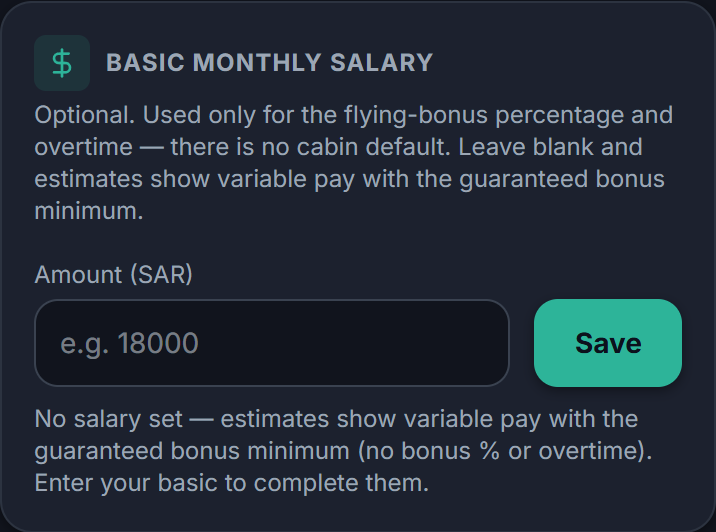
Set your basic salary
Pay estimates are computed from your numbers. Open Settings, enter your gross basic monthly salary, and save — it's stored on your account and follows you to any device. Prefer not to? Use the rank-default toggle instead; estimates will be close, not exact. Cabin crew: salary is optional — you'll see variable pay either way.
Tell the Planner what matters
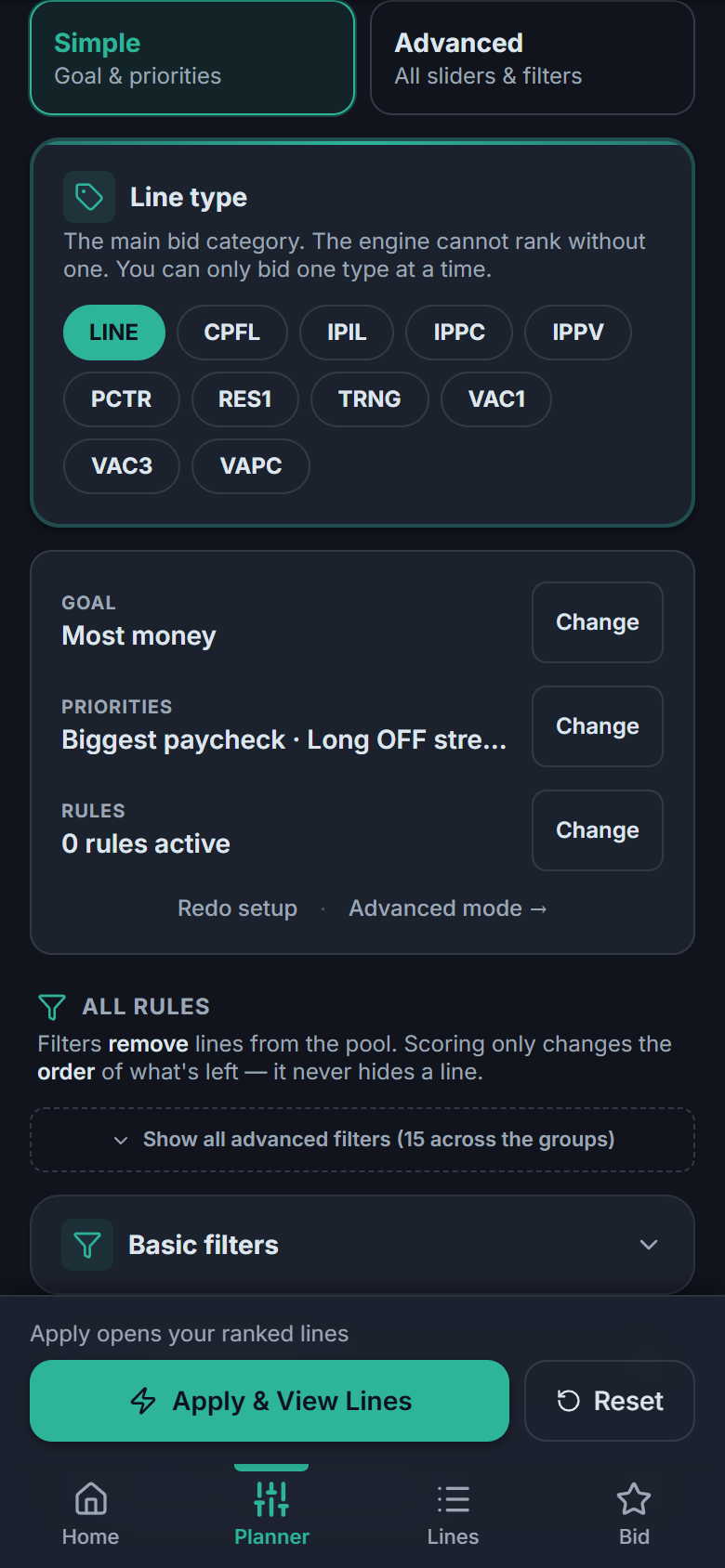
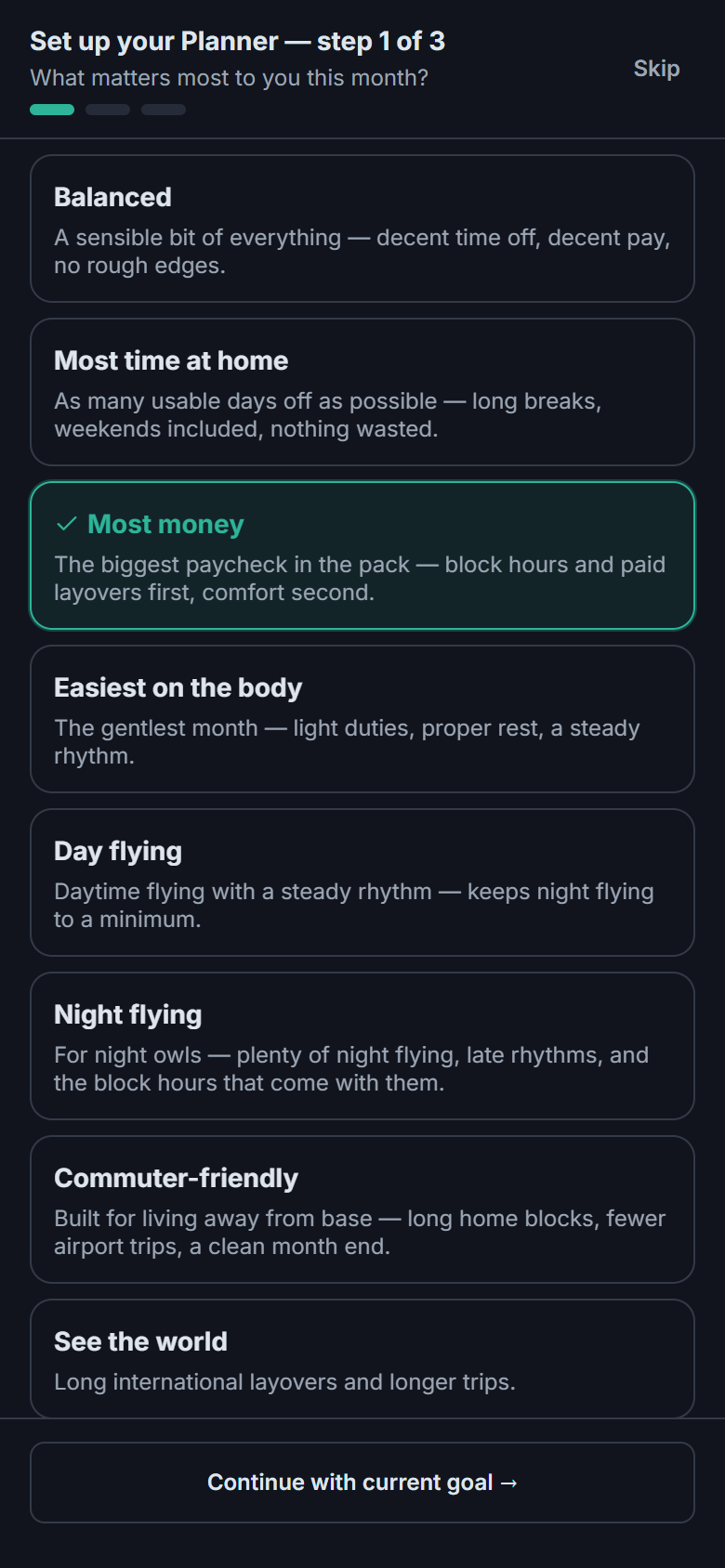
Pick a line type first — LINE is the normal flying line, and the one you want on your first visit. Then pick a goal: Most time at home, Most money, Easiest on the body… each one is a ready-made starting point.
Goals are starting points, not commitments — chapter 3 covers Simple mode in full, plus Advanced mode's eleven presets and 34 manual sliders for anyone who wants more control. None of it is required on day one — the defaults already rank sensibly.
Tap Apply & View Lines and the whole pack is ranked for you.
Read your ranking, build your bid
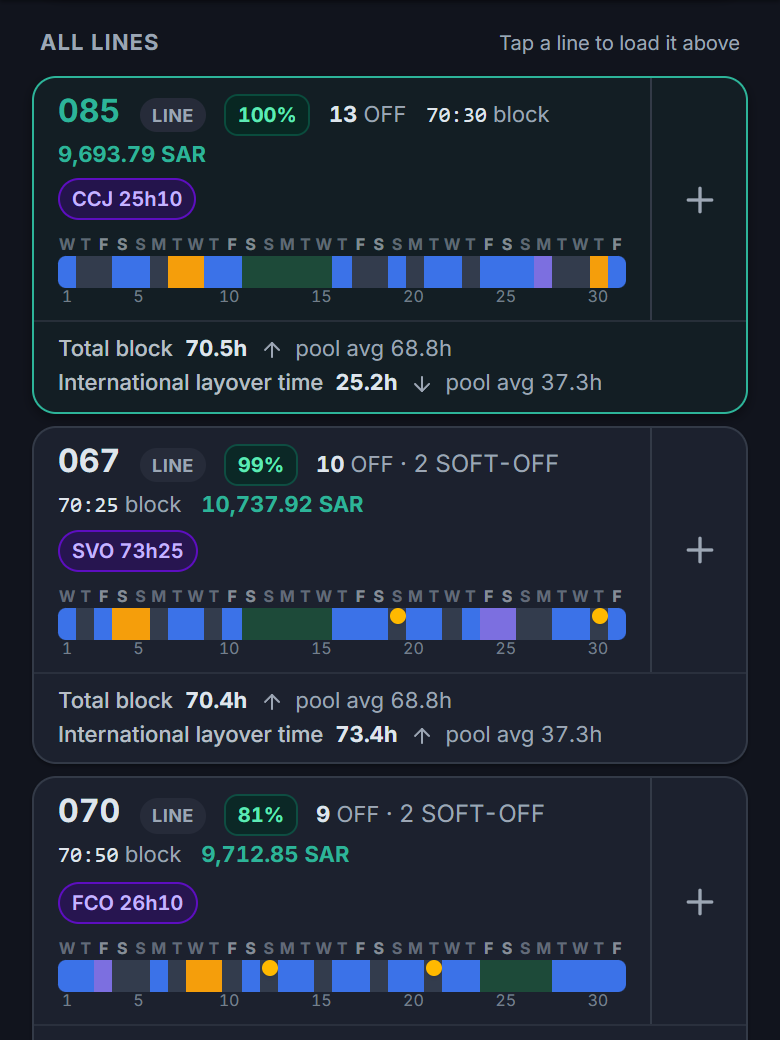
Every eligible line gets a match score out of 100 — where it sits between the best fit (100) and the worst fit (1) among the lines that pass your current rules this month. It's a relative measure: change a rule or a preference and the numbers re-spread across the surviving lines. Next to it: OFF days, block hours, layovers, and the estimated pay figure.
Tap + on the ones you like — they stack up in your bid in the order you rank them. Tap the line itself to inspect it first (chapter 4).
Copy it into COBS
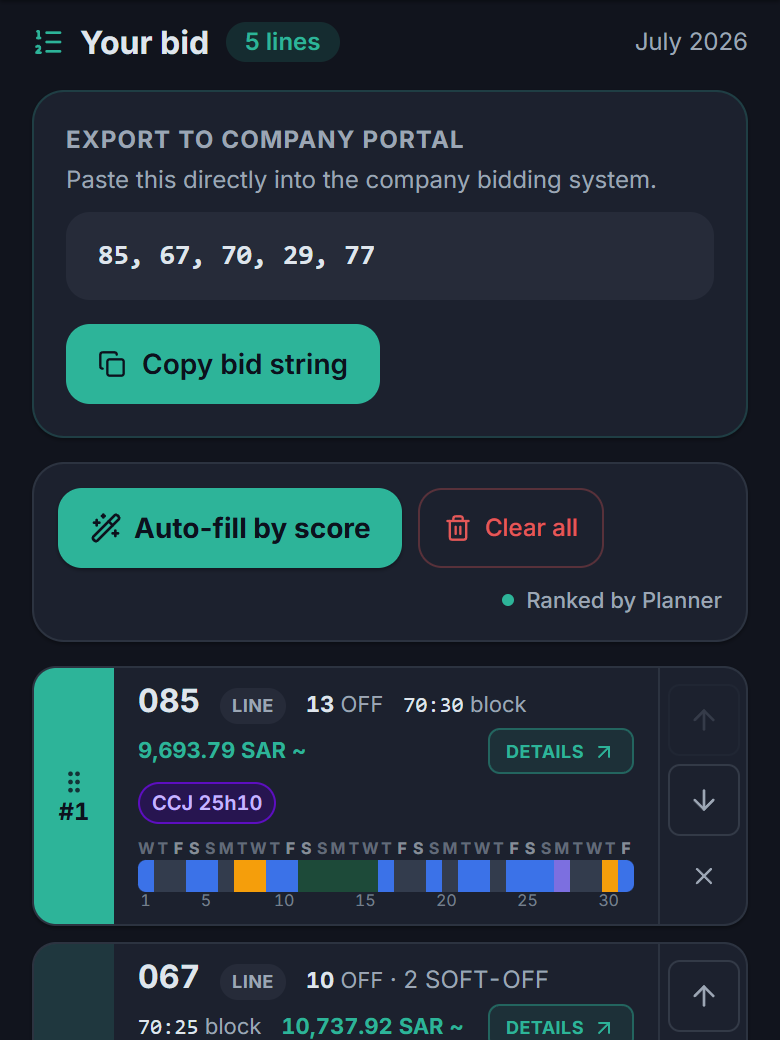
The Bid tab holds your list. Use the arrows to reorder, × to drop a line, then hit Copy bid string and paste straight into COBS.
Auto-fill by score is the shortcut: one tap fills your entire bid with your ranked lines, best first. A longer preference list means the company system is less likely to fall past your choices — so a common flow is: add your must-haves by hand, then Auto-fill, and your picks stay on top of a complete list. Clear all starts you over.
RosterMate helps you decide — the company system is still where you submit.
Chapter 4
Simple mode, presets & fine-tuning
A goal (or a preset) is a starting point, not a commitment — pick the closest one, then adjust anything. Your changes layer on top.
Which mode? Simple is the default and covers most months — a goal, a short priority list, and a few must/never rules. Advanced keeps the classic tools: all eleven presets and the 34 manual sliders, for whenever you want full control. The toggle remembers your last choice, and you can switch either way, anytime. If you'd already set up presets or sliders before Simple mode existed, you saw a one-time choice between the two — your existing setup was never touched.
Simple mode
One profile — goal, priorities, and rules — tuned in plain language, then applied to your whole pack with one tap.
Goal sets the whole profile in one tap — pick the closest match to what you want this month. Priorities is your own short list on top of it: drag your top priorities — #1 counts most, max 5 — and they nudge the goal's ranking toward what matters most to you specifically.
Rules are must/never — they remove lines entirely and never change scoring (days you need off, no reserve, home every night, destinations to avoid). Adjust a slider or a rule by hand and the card flags itself Customized; the goal is still there if you want it back, one tap away with Back to my goal.
When you're happy, Apply & View Lines ranks the whole pack — and the Scoring tab on any line shows exactly how your profile shaped its place.
Pick a goal
8 goals, each a ready-made starting point:
- Balanced
- A sensible bit of everything — decent time off, decent pay, no rough edges.
- Most time at home
- As many usable days off as possible — long breaks, weekends included, nothing wasted.
- Most money
- The biggest paycheck in the pack — block hours and paid layovers first, comfort second.
- Easiest on the body
- The gentlest month — light duties, proper rest, a steady rhythm.
- Day flying
- Daytime flying with a steady rhythm — keeps night flying to a minimum.
- Night flying
- For night owls — plenty of night flying, late rhythms, and the block hours that come with them.
- Commuter-friendly
- Built for living away from base — long home blocks, fewer airport trips, a clean month end.
- See the world
- Long international layovers and longer trips.
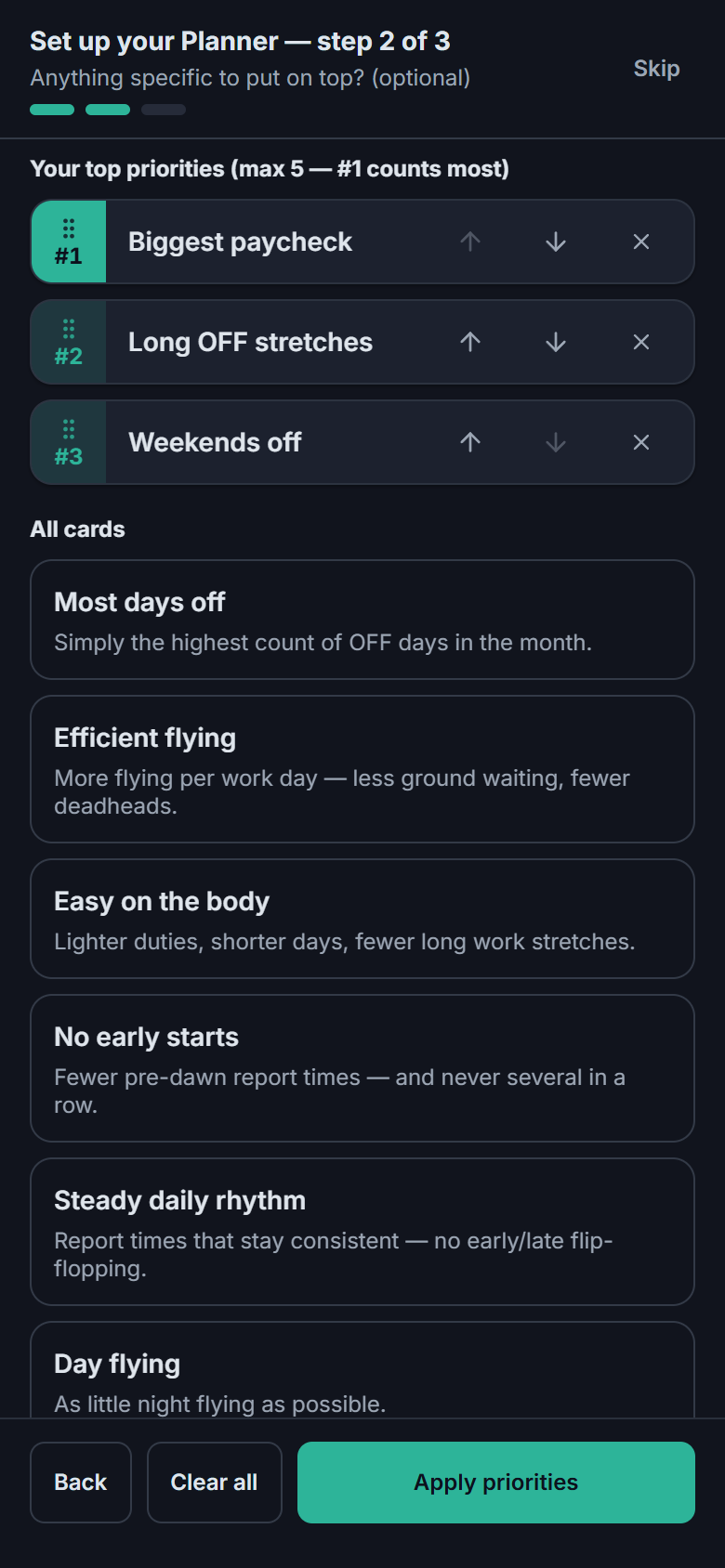
Rank your priorities
Drag your top priorities — #1 counts most, max 5 — from a list of bite-sized cards (good rest between trips, biggest paycheck, no early starts, and more). Each one nudges the goal's ranking without replacing it; a priority that pulls against your goal still wins — RosterMate just tells you so. Leave the list empty and the goal runs on its own.
Advanced mode
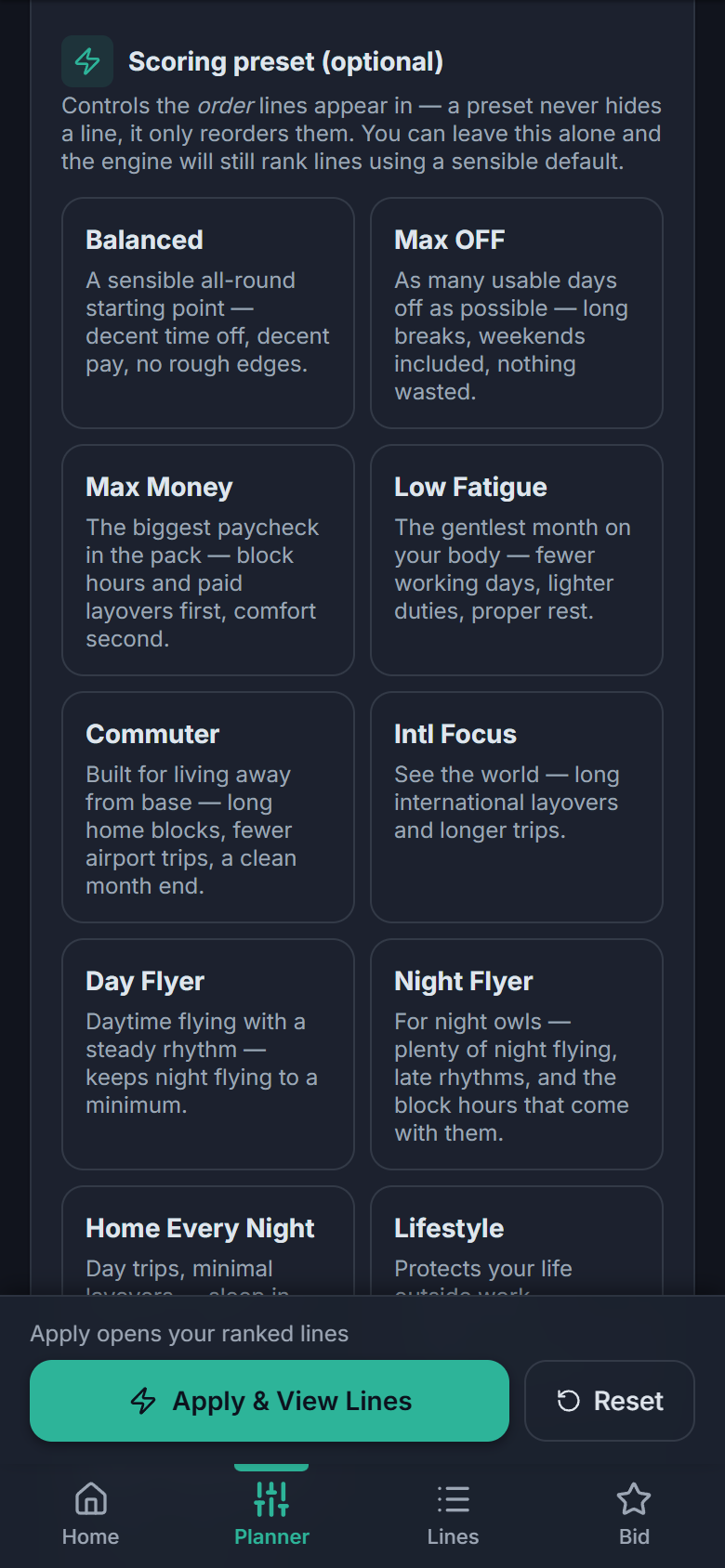
Advanced mode keeps the classic tools: all eleven presets and the 34 sliders in eight groups, for anyone who wants full manual control.
All eleven presets
Three show by default; Show advanced reveals the other eight. Each one is a ready-made set of the same 34 weights the manual sliders control:
- Balanced
- Moderate preferences across off-days, block, rest, and timing.
- Max OFF
- Maximize off days, weekend off, and long off-stretches.
- Max Money
- Maximize block hours and high-earning patterns.
- Low Fatigue
- Minimize duty days, leg count, long duties, night, and early starts.
- Commuter
- Built for living away from base — long home blocks, fewer airport trips, a clean month end.
- Intl Focus
- International layovers and longer trips.
- Day Flyer
- Avoid night flying and early reports; prefer daytime operations.
- Night Flyer
- For night owls — plenty of night flying, late rhythms, and the block hours that come with them.
- Home Every Night
- Day trips, minimal layovers — sleep in your own bed.
- Lifestyle
- Best off/work balance: high off, low fatigue, weekend off, no early or night flying.
- High Productivity
- Maximum block hours — high flying, high pay.
Manual scoring adjustment — the 34 sliders
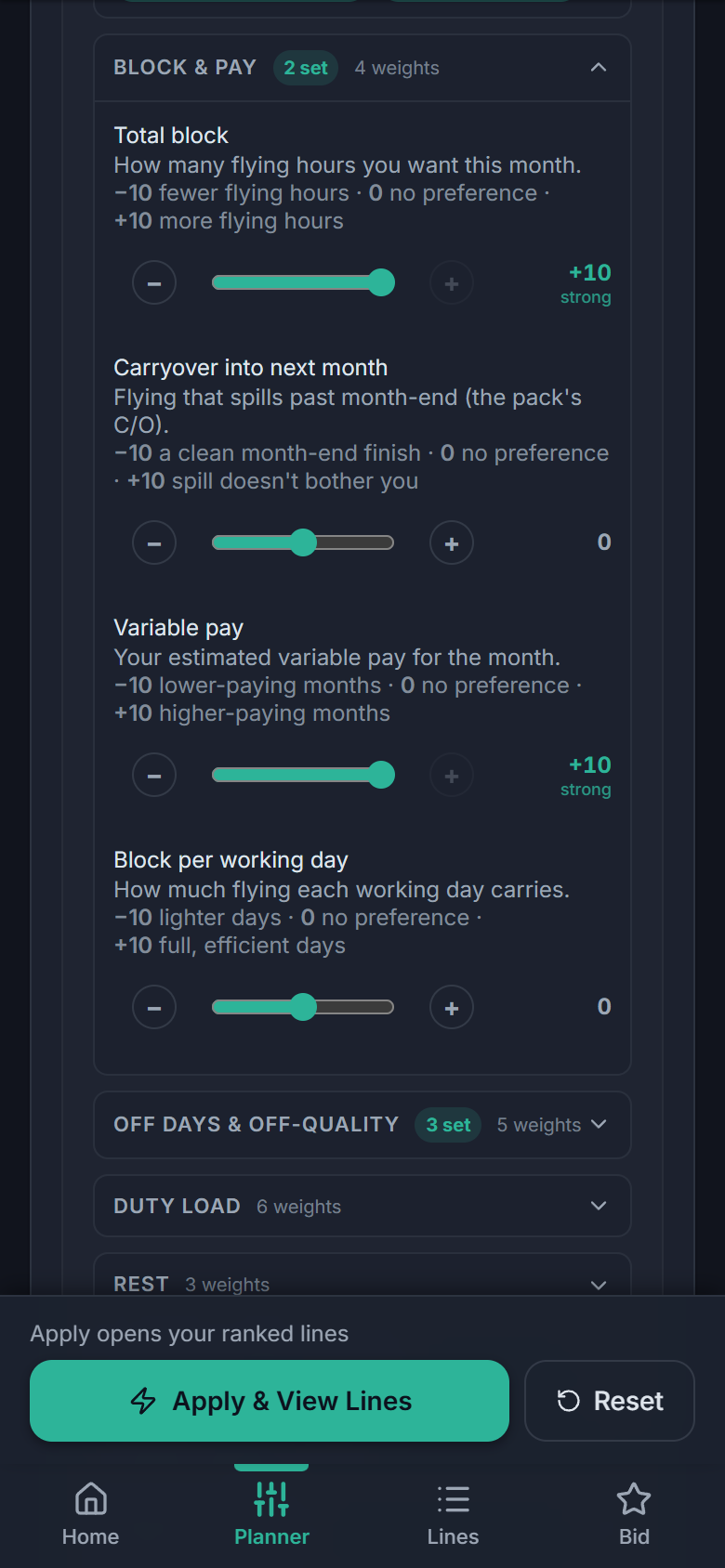
Under the presets sits the full engine: 34 sliders in eight groups — Block & income, OFF days & off-quality, Duty load, Rest, Layover, Timing, Reserve, and Trip composition. Every slider works the same way:
- Drag right (+) — prefer lines with more of that metric.
- Drag left (−) — prefer lines with less of it.
- Leave at 0 — the engine ignores it completely.
The winning combo: preset first, sliders second. Picking a preset sets all 34 sliders to its recipe — then drag the few you feel strongly about. Example: start from Max Money, then push Weekend OFF days up because Fridays matter to you. Tap Apply & View Lines and the ranking follows; Reset takes you back to defaults whenever you've tuned yourself into a corner.
Sliders change the order, never the pool — if you want lines removed entirely (minimum OFF days, specific dates off, no reserve lines at all), that's what Hard filters below them are for.
Chapter 5
Reading a line before you trust it
Tap any line to open it. Three tabs do the heavy lifting — Calendar, Duties and Scoring.
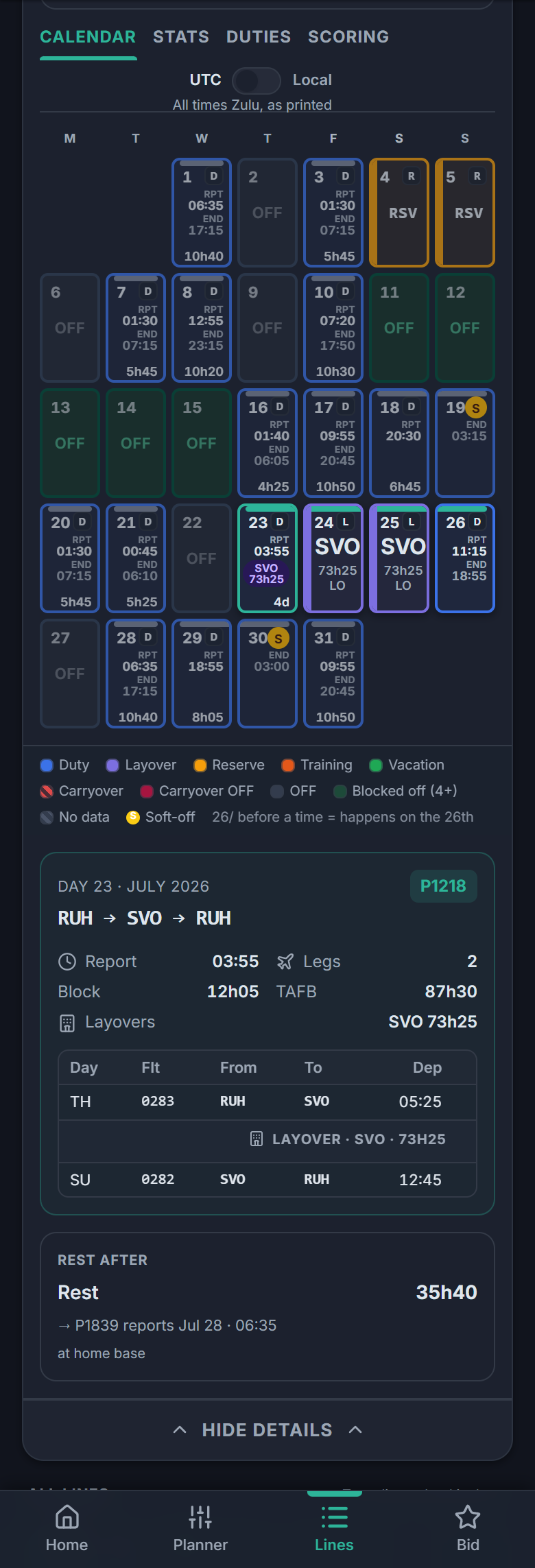
Calendar
The whole month, color-coded — duties, layovers, reserve, OFF. Tap a day to see the flights inside it, and the rest you get afterwards.
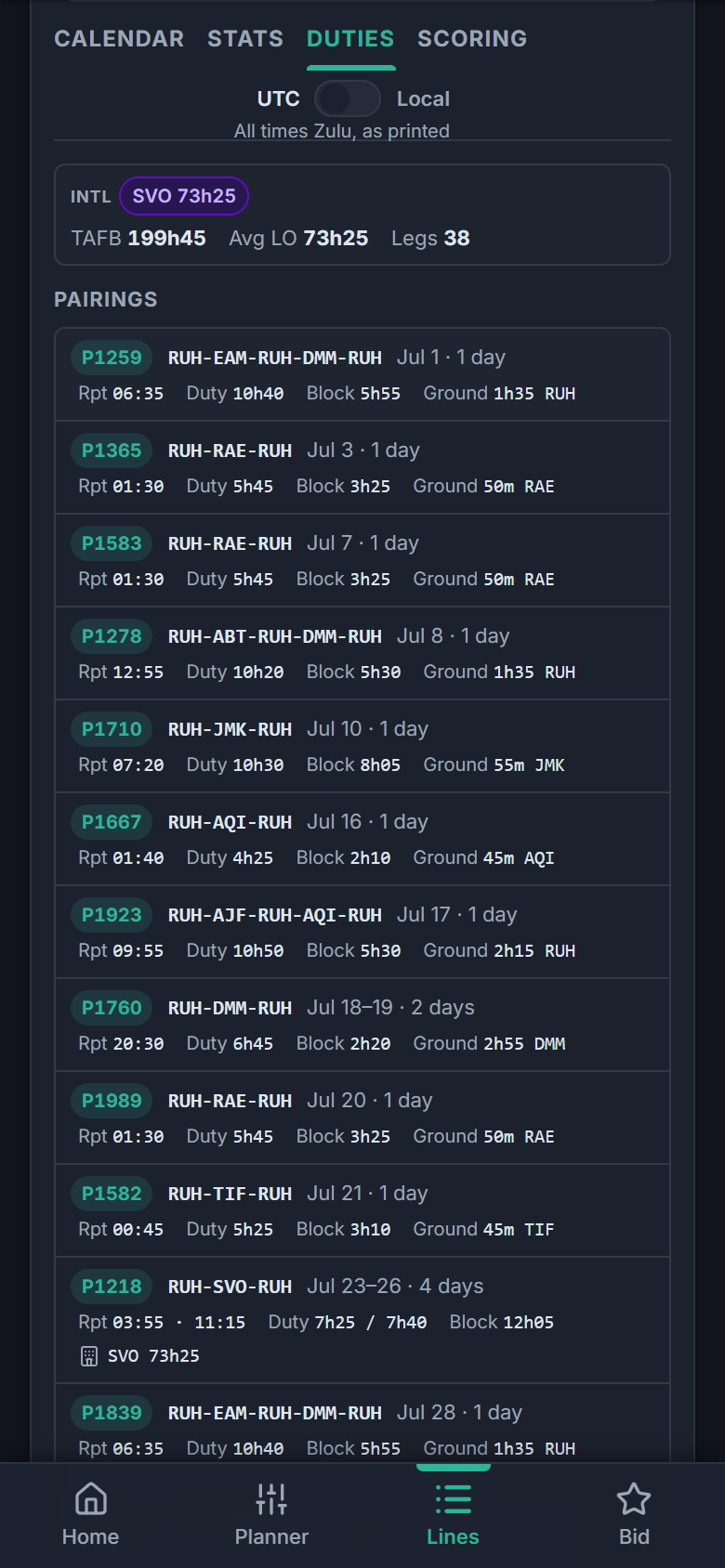
Duties
The numbers behind the month — duty versus block time per pairing, the sits between flights, and how long each layover really is.
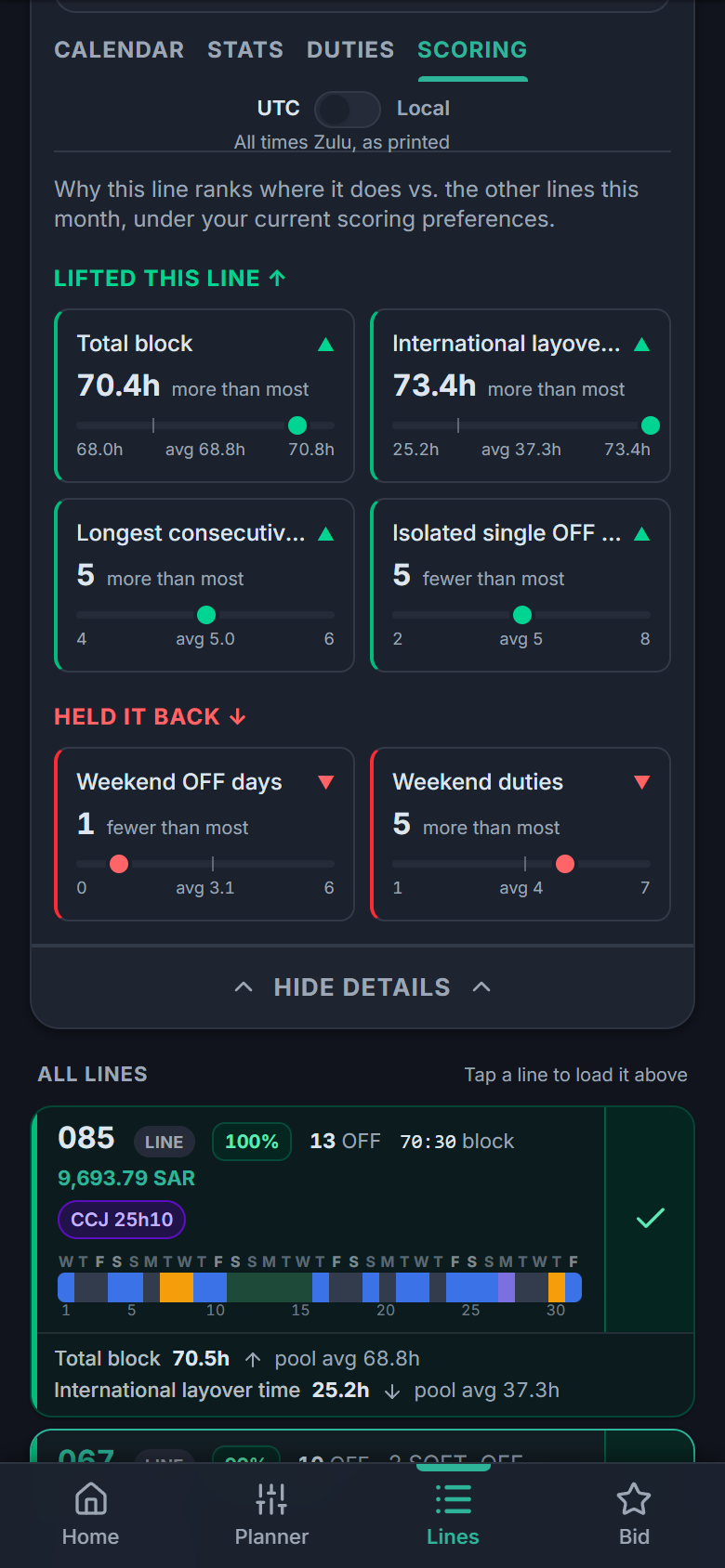
Scoring
Why it ranked where it did: what lifted it, what held it back — measured against the other lines in the pack. No black box.
Chapter 6
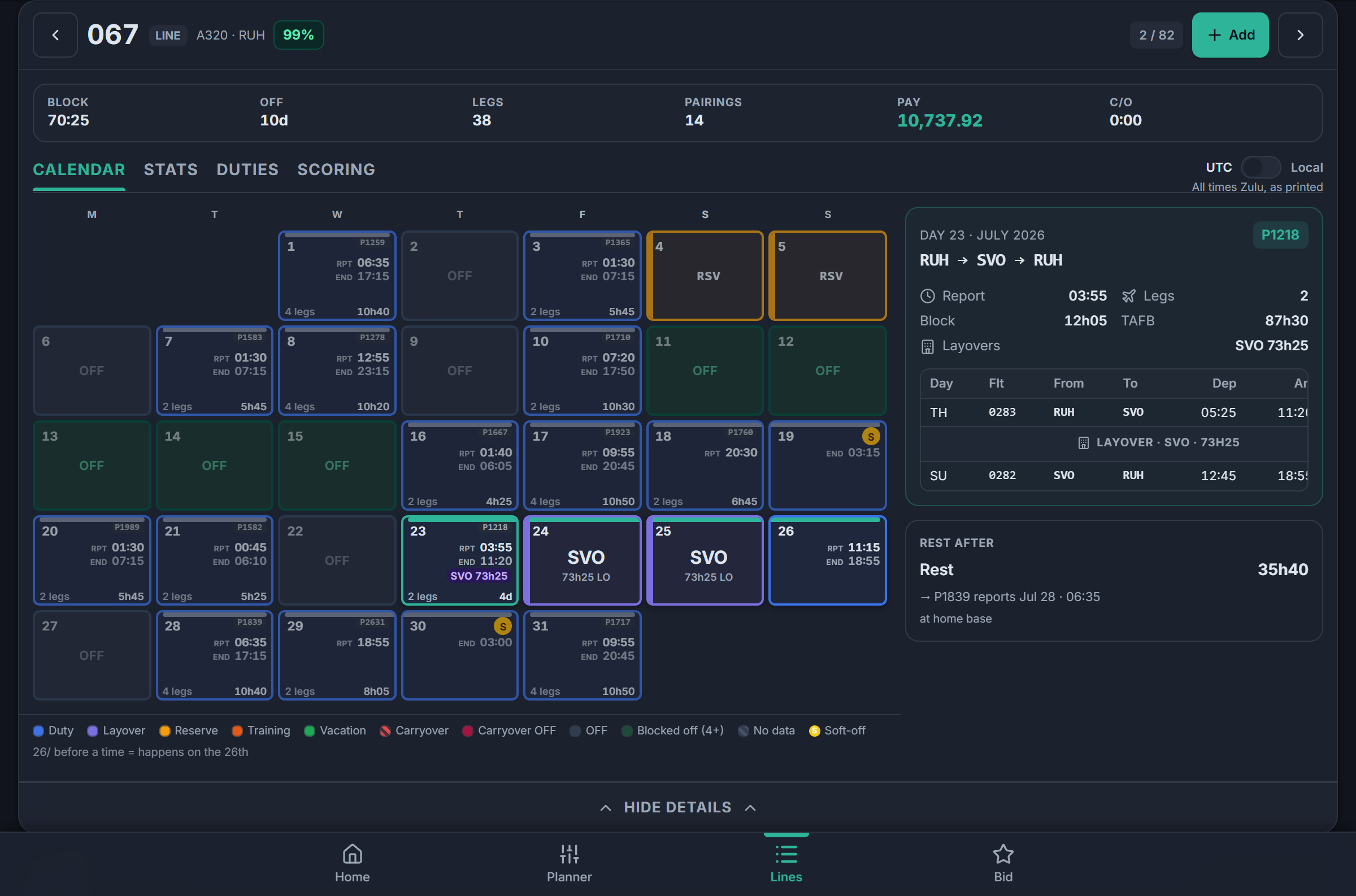
Better on a bigger screen
Same account, same data — iPad and desktop just show more of it at once.
Chapter 7
Your pack isn't there yet?
Packs are published for supported fleets and cabin groups every cycle — but you never have to wait.
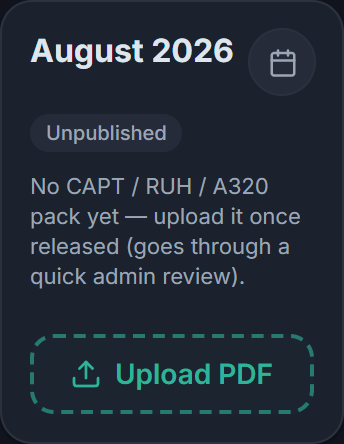
When the company releases a new pack, Home shows an Upload PDF card for your fleet or cabin group. Upload the bid-pack PDF and it appears for everyone on your fleet or group after a quick admin review — usually the same day.
Anything look wrong — a pay figure, a duty, a ranking? Use Send feedback in Settings. Right now, crew reports are exactly what gets fixed first.
That's the whole loop.
Salary once, preferences once a month, and your bid is ready in minutes.
Open RosterMate